 MacLenz
Day tracking
A Mac time tracker that runs by itself
MacLenz records which apps and websites you use all day, sorts the time into productive, neutral and distracting, and shows it hour by hour. There are no timers to start and nothing to remember.
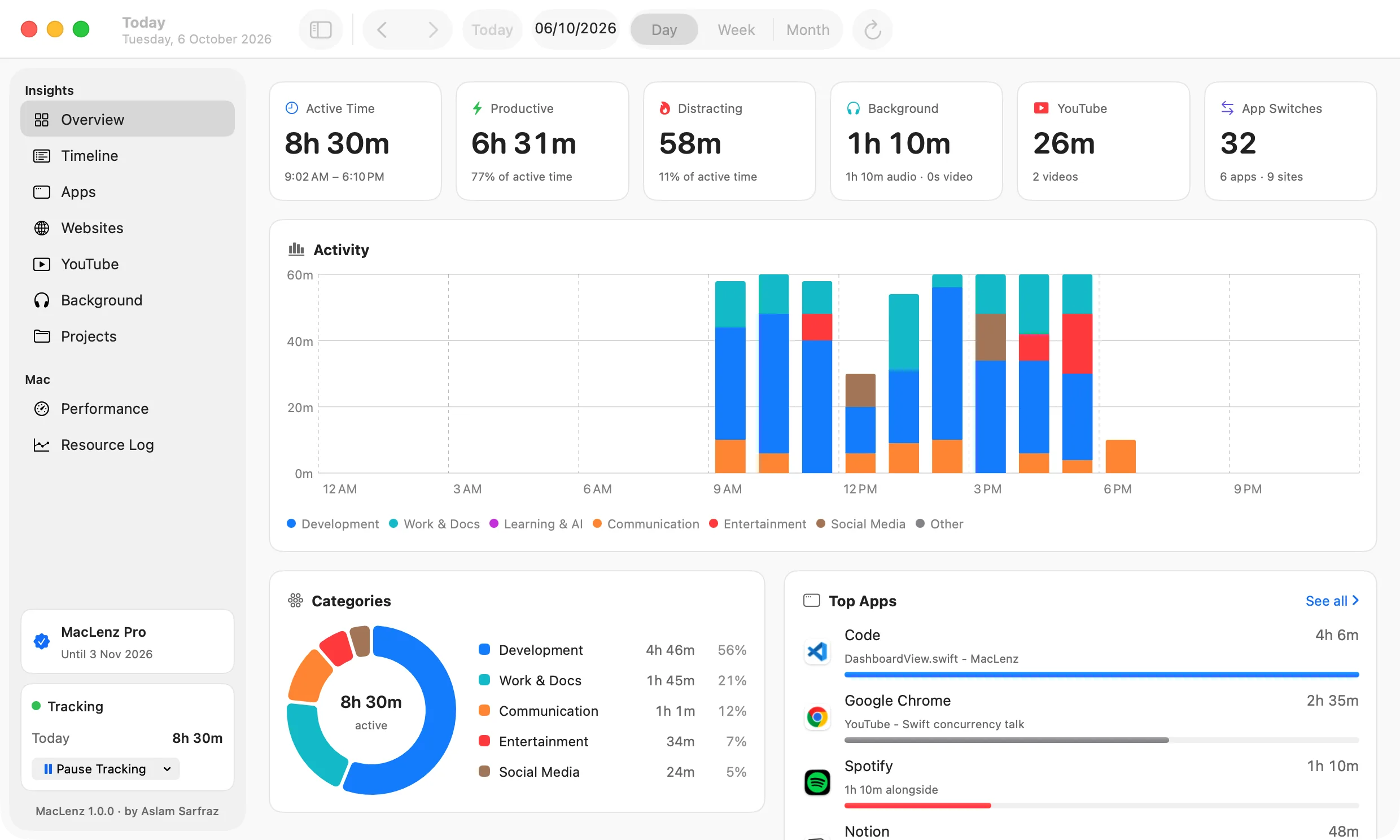
What it tracks
The apps, sites, videos and projects you actually use
Apps
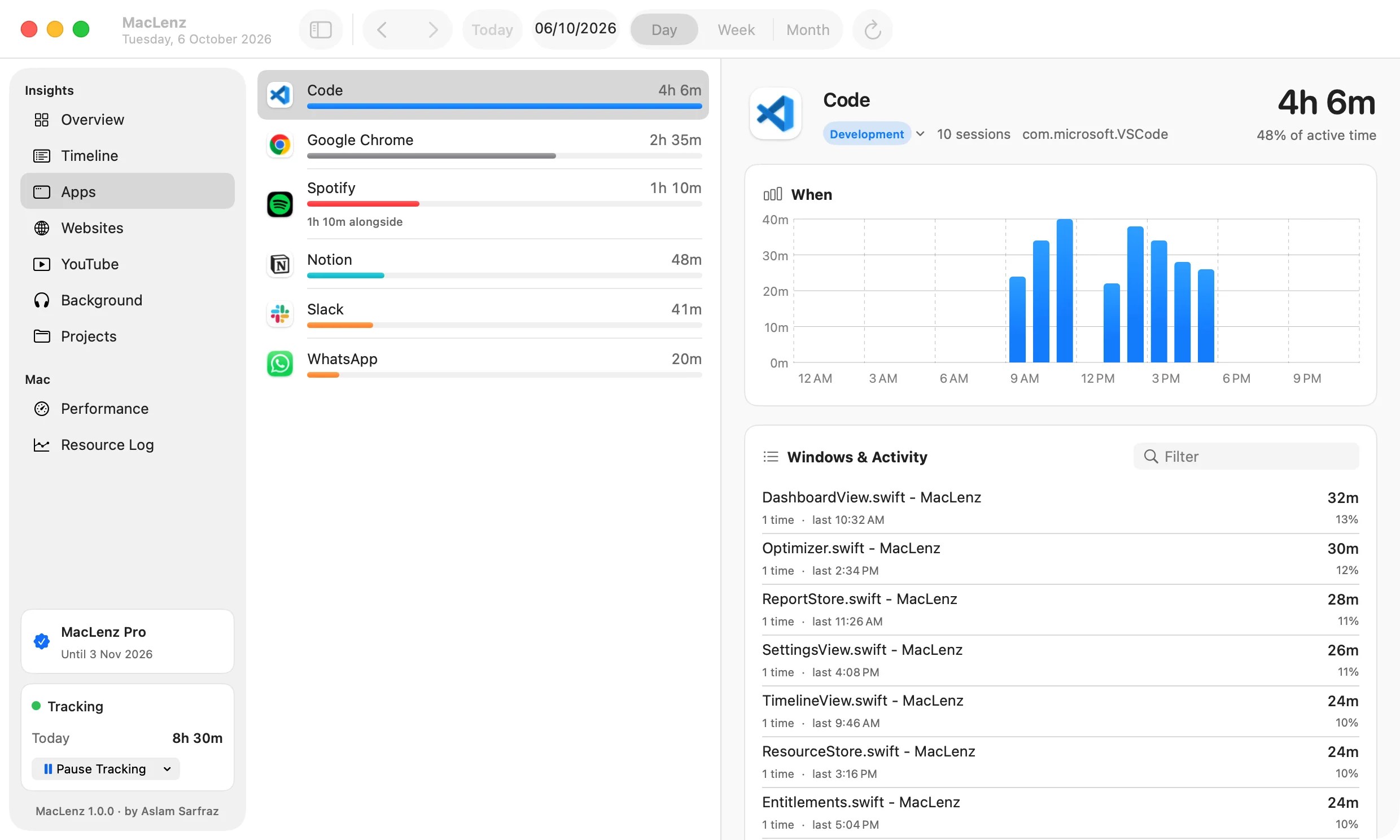
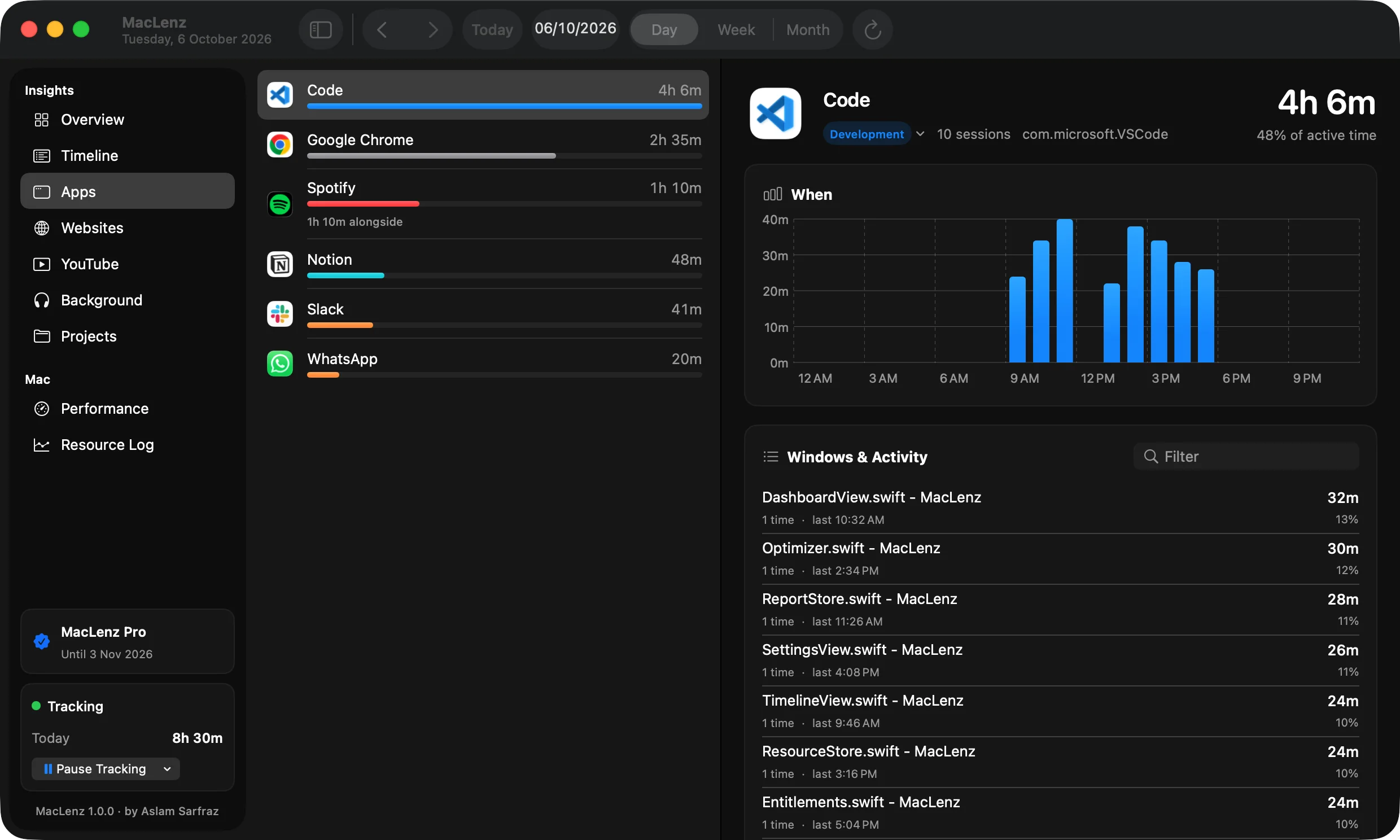
How long each app was in front of you, and which windows and files you were in. Pick an app and see its whole day on one chart.
Websites
The title and address of the active tab in Safari, Chrome, Arc, Brave, Edge, Opera and Vivaldi. It reads the tab, never the page.
YouTube
Time on YouTube, the videos you watched and how long, and and how much of it went on browsing and searching.
Projects
MacLenz guesses the project from the titles of editors and terminals such as Xcode, VS Code, Cursor, Windsurf, Zed, Android Studio, Nova and the common terminals.
Background
Audio you listened to and video you watched on a second screen are kept apart from your active time, so a playlist never inflates your day.
Real time only
Time while the Mac is locked, asleep or you are away is left out. What remains is time you were at the Mac.
How the day is sorted
Productive, neutral or distracting
Every app and site sits in a category. Development, work and documents, and learning count as productive. Communication and everything else count as neutral. Entertainment and social media count as distracting.
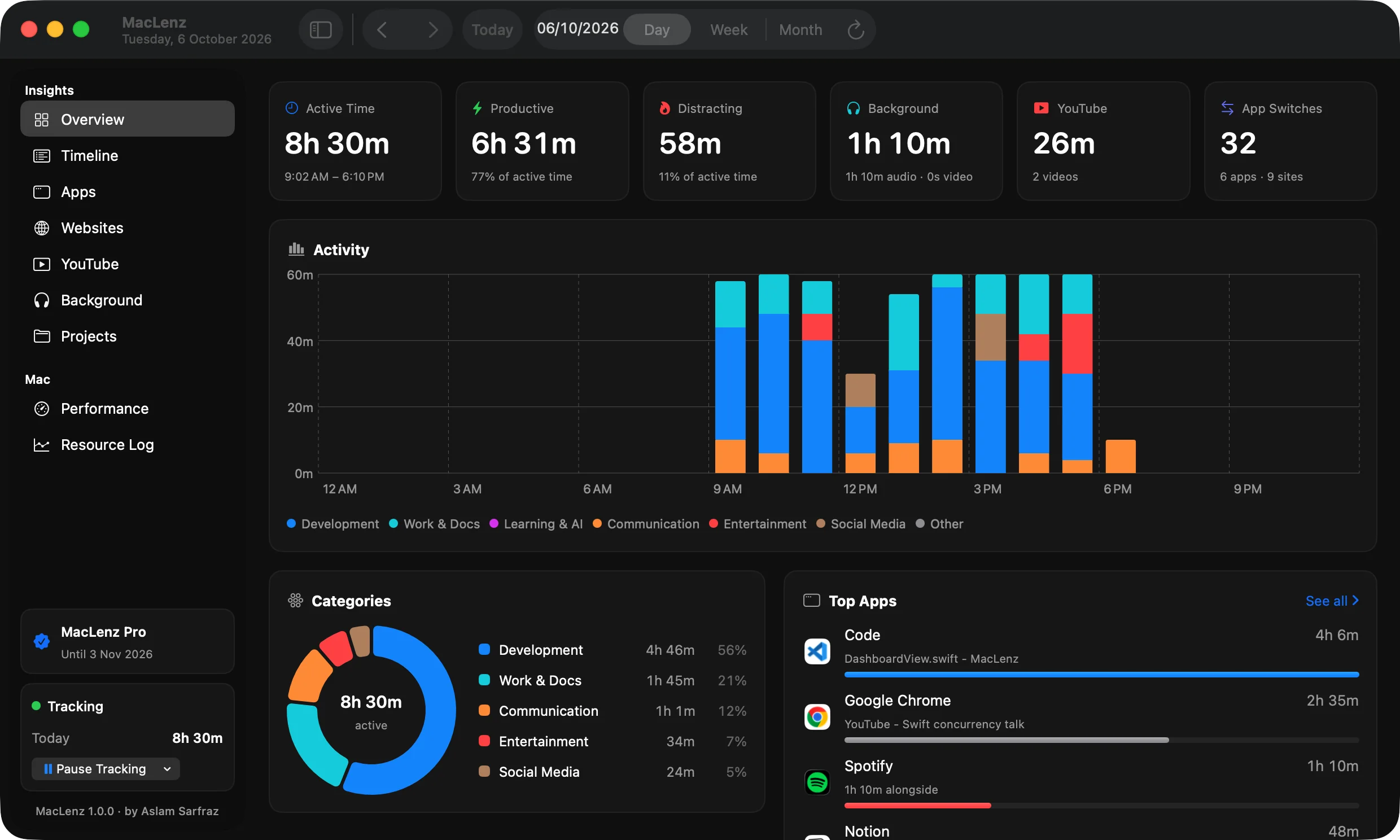
The Overview turns that into six numbers: active time, productive time, distracting time, time in the background, time on YouTube and how many times you switched apps. Productive and distracting time are shown as a share of your active time, so a busy day and a focused day look different.
If you disagree with a label, change the category of that app or site. Your past days update too, because categories are applied when a report is built.
Timeline
Scroll back through your whole day
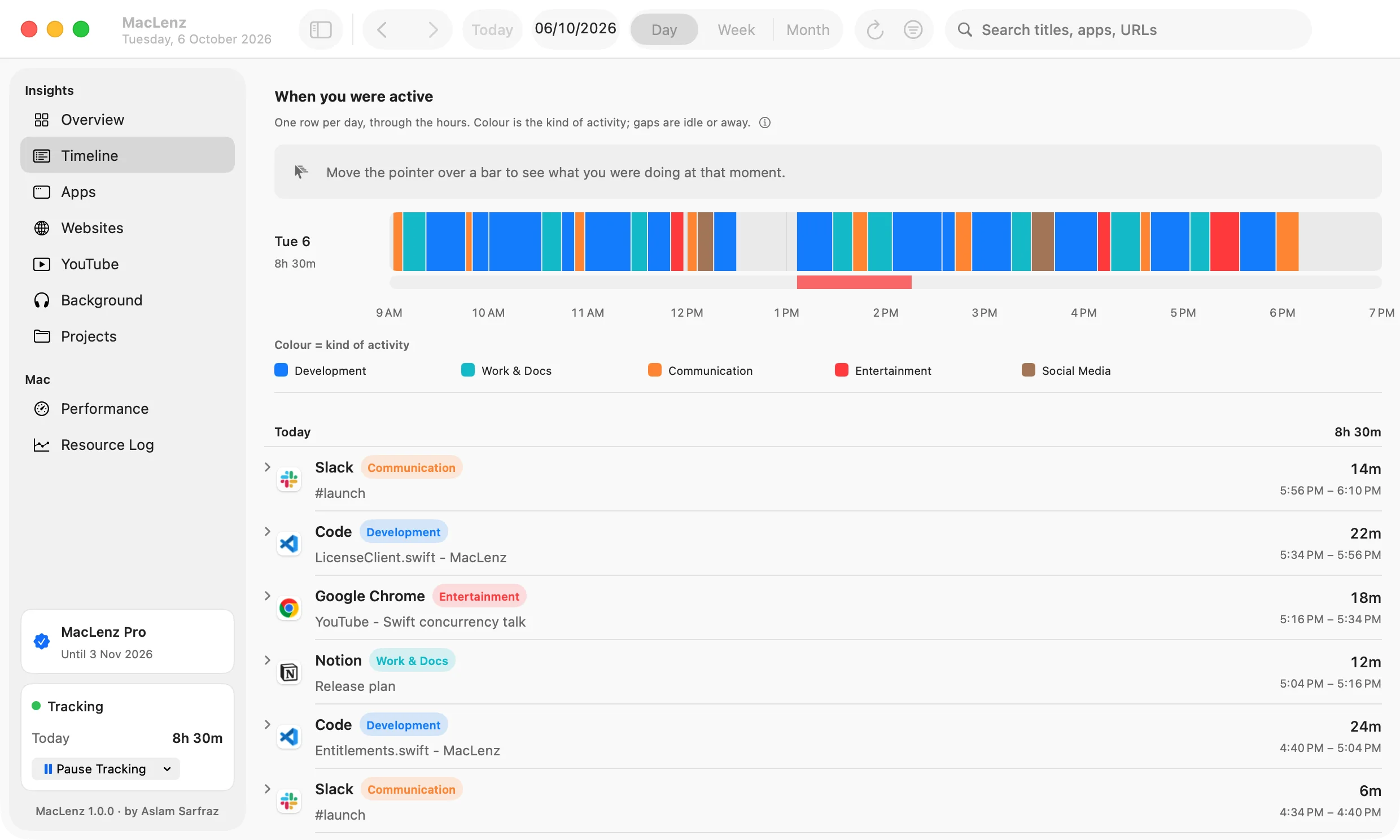
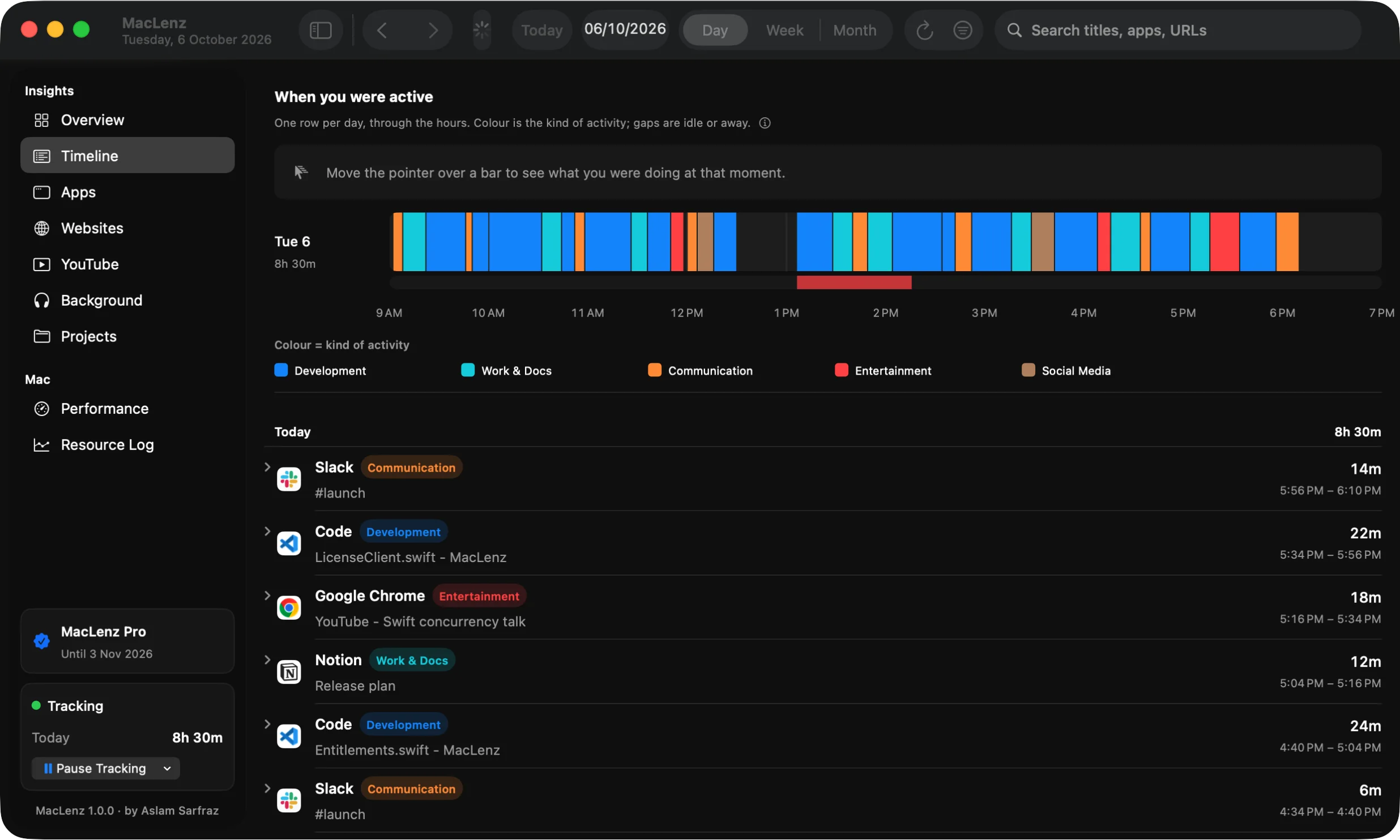
The Timeline lists every stretch of your day, newest first, grouped by day and by runs of one app. Each row shows the window or page you were on and the exact times. A band at the top paints the day in colour, and hovering it tells you what you were doing at that moment.
You can search every window title, app name and web address. That makes it easy to answer a question such as how long you spent in one document, or when you last opened a particular site.
- Search titles, apps and addresses
- Hover the band to see that exact moment
- Idle, locked and away time is left out
Week and month PRO
See your patterns over weeks and months
The Free plan shows the last 3 days, one day at a time, and never expires. Pro keeps all of your history and adds week and month views, and those views show when you do your best work and where the hours slip away, so you can tell whether this week is better than last week.
Privacy rules apply to everything shown here. Private and incognito browser windows are saved only as "Private Browsing", and MacLenz never reads the contents of pages, documents or messages.
Compare Free and Pro or read how privacy works in MacLenz.
In the menu bar
Your day so far, one click away
MacLenz adds two small items to the menu bar. The first opens a panel with your day so far: active time, productive and distracting time and your top apps. The second shows how your Mac is doing, and the Mac performance page explains it. You can choose which of the two appear, and what each shows.
Questions
Questions about day tracking
Do I have to start a timer?
No. MacLenz records automatically while you use your Mac. There is nothing to start, stop or remember.
Does it work with Chrome, Safari and Arc?
Yes. MacLenz reads the title and address of the active tab in Safari, Chrome, Arc, Brave, Edge, Opera and Vivaldi. Other browsers still count as apps, but their tabs are not read.
What happens when I step away from the Mac?
Time while the Mac is locked or asleep, or while you are away, is left out of your active time. The Timeline marks when you went idle or away.
Can I change how an app or site is categorised?
Yes. Change the category of an app or a website and your past days update too. A website's category wins over its browser's, and sites MacLenz does not know fall back to the browser.
Does it read what is on the page?
No. It reads window and tab titles and page addresses, never the contents of pages, documents or messages.
Be the first to know when MacLenz launches
Leave your email and we will write to you once, the day it is ready. The Free plan has no time limit and needs no card.
Download for Mac